You may have noticed with the recent release of PowerShell 7.3 that your command line started automatically suggesting line completion based on your current input.
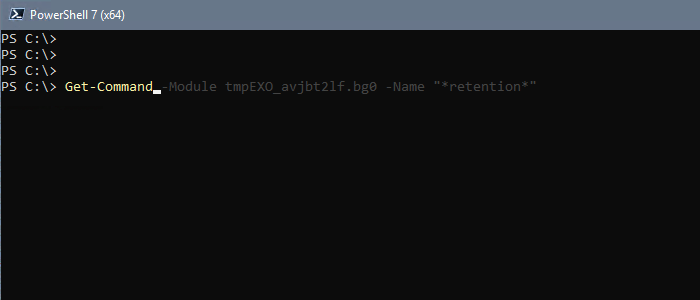
This feature is called Predictive IntelliSense. While not a new feature, the 7.3 release enables it by default. On its face, this feature seems useful. After all, we use IntelliSense every day in our ISEs.
I hate it on the command line.
As an engineer, I use common commands on many different objects, and I usually know what I’m trying to accomplish. Predictive IntelliSense almost always ends up as noise and a distraction from the command I’m trying to run.
The good news is that it’s very easy to turn off.
Set-PSReadLineOption -PredictionSource None
I actually do think this is a useful feature in some situations. I particularly like the ListView style. PSReadLine has a default keybinding to switch between InlineView and ListView using F2.

Unfortunately, there isn’t a keybinding to simply turn predictions On or Off. Enter PSReadLine’s custom keybindings. By creating a simple scriptblock we can read the current PredictionSource and then toggle it between the On (HistoryAndPlugin) and Off (None) states. This could be easily customized if you only wanted to use a specific source, or if you wanted to iterate through all of the source options. After changing the state, the scriptblock will trigger the autocomplete to appear or disappear while preserving the current input.
$parameters = @{
    Key = 'F4'
    BriefDescription = 'Toggle PSReadLineOption PredictionSource'
    LongDescription = 'Toggles the PSReadLineOption PredictionSource option between "None" and "HistoryAndPlugin".'
    ScriptBlock = {

        # Get current state of PredictionSource
        $state = (Get-PSReadLineOption).PredictionSource

        # Toggle between None and HistoryAndPlugin
        switch ($state) {
            "None" {Set-PSReadLineOption -PredictionSource HistoryAndPlugin}
            "History" {Set-PSReadLineOption -PredictionSource None}
            "Plugin" {Set-PSReadLineOption -PredictionSource None}
            "HistoryAndPlugin" {Set-PSReadLineOption -PredictionSource None}
            Default {Write-Host "Current PSReadLineOption PredictionSource is Unknown"}
        }

        # Trigger autocomplete to appear without changing the line
        # InvokePrompt() does not cause ListView style suggestions to disappear when toggling off
        #[Microsoft.PowerShell.PSConsoleReadLine]::InvokePrompt()

        # Trigger autocomplete to appear or disappear while preserving the current input
        [Microsoft.PowerShell.PSConsoleReadLine]::Insert(' ')
        [Microsoft.PowerShell.PSConsoleReadLine]::BackwardDeleteChar()

  }
}
Set-PSReadLineKeyHandler @parameters
Now when you press F4, it will toggle IntelliSense on and off and trigger the suggestion automatically.
I hope you found this useful. Happy scripting!
-Ian
References
 Pwsh+
Pwsh+ 
Thanks a bunch, it worked like a charm! And it also worked in VSCode.
LikeLike
Thanks, pwshBandit!
LikeLike
Hey, thanks for sharing, apparently we’re not the only ones somehow bothered by these predictions showing up constantly 🙂
The keybind example is really great, smoothly turning the predictions on or off, while keeping the prompt intact.
Unfortunately, this does not work for me when using the ListView style.
If predictions are on and ListView is activated, pressing the shortcut does apparently still turn it off as expected, but the ListView display remains unaffected?
Can you reproduce this?
LikeLike
Hi Inho,
Thank you. That’s very interesting; I was able to reproduce the issue.
In the original version of my keybind script I had a “less sophisticated” method of invoking the autocomplete to appear/disappear which was to just insert a space and delete it. Instead of using the InvokePrompt() method, try this:
[Microsoft.PowerShell.PSConsoleReadLine]::Insert(‘ ‘)
[Microsoft.PowerShell.PSConsoleReadLine]::BackwardDeleteChar()
This way seems to reliably turn off the predictions in either view.
LikeLike
Hi Ian,
thank you for this suggestion. I have replaced InvokePrompt() with the two lines as you suggested, and I can indeed confirm that this is working as you described!
Interesting. I wonder why this one works, while the other does not.
I mean, the functionality clearly exists in PSReadLine, it’s basically the same when using the default F2 keyboard shortcut to switch from ListView to InlineView, making the list reliably disappear..
But I haven’t found it yet in the source code 🙂
What might also work is using this
[Microsoft.PowerShell.PSConsoleReadLine]::GetBufferState([ref]$line, [ref]$cursor)
This gets the current state, if you simply “re-insert” this after the Set-PSReadLineOption call, it should probably work as well..
LikeLike