Note: This series is a narrative of how I created a custom PowerShell module for a platform that is used in my current job role. I use this module every day and it is in production for several automated processes. These articles are not intended to be a comprehensive how-to for creating PowerShell modules. Rather, they are an exploration of the ideas, thought processes, and journey to create something unique and functional for a real-world application. I will touch on specific concepts and give code examples for how they were implemented as part of the module. I will also be creating a series of posts in the future as tutorials for how to use this module in case anyone uses the same application and is interested.
The organization I work for uses a Managed File Transfer (MFT) platform that is powerful and has a lot of configuration options. As the saying goes, with great power, comes great complexity… or something like that. Use of the platform started off small – just a couple jobs here and there. Over time the system has grown to encompass many, many file transfer jobs. Every job has different configurations, and all must be set up and documented. Configuring each individual transfer job required clicking through multiple screens, filling out often repetitive info, and adding many custom attributes to standardize and fully document the job. Needless to say, adding transfer jobs became very tedious, very quickly.
In addition to the cumbersome process of manually creating transfers, this platform has a DR system that is completely separate – they don’t talk to each other or share configurations. This means that every account, every transfer job, and every configuration must be created twice! Imagine the tediousness of creating jobs and then double it. Not a good scenario.
Fortunately, the platform does have a REST API. The API can manage just about every useful part of the system. Unfortunately, the vendor doesn’t provide you with any tools to leverage the API in any meaningful way outside of the swagger interface. It’s a start, at least. I started using the API swagger interface for certain day-to-day tasks. It was helpful to a point; however, this method came with its own challenges and tediousness.
Enter: PowerShell’s Invoke-WebRequest
I remembered some work I had done a few years ago to create a PowerShell script using Invoke-WebRequest which called a different vendor’s API for a simple task. I figured I should be able to use this cmdlet to work with anything provided by the MFT platform’s API. To make this idea really useful, I needed more than just a couple little scripts running Invoke-WebRequest commands. I needed to make a functional and flexible module which provided cmdlets to access each of the API methods and resources.
Creating a module from scratch presents a number of challenges. You have to be able to retrieve and present data in a logical way, as well be able to accept inputs for data that is sent to the API. Also, every request requires a URI & credentials. So, what’s the best method of organizing and presenting this data? How can configuration information be stored and retrieved for easy re-use? Throughout the process, questions and challenges continued to pop up. A lot of Bing-fu (:P) was needed to be able design and create this module.
One of the first places I started reading was Jeff Hicks’ series of articles on Petri showing how to create PowerShell modules.
How to Create a PowerShell Module, Jeff Hicks
The basics are to create a manifest file (.psd1) to describe the module and a source file (.psm1) which contains the code. After creating an initial manifest and module files, I started creating cmdlets using Invoke-WebRequest to work with the REST API.
The API returns data formatted as JSON making it very easy to capture and convert into PSObjects for use and manipulation. I quickly realized that the amount of data returned in most GET requests can be overwhelming when dealing with complex data models. Being able to format this data for presentation would to be very important to the overall usability of the module. Jeff also had an article for this.
A PowerShell Script to Find System Uptime: Formatting Results, Jeff Hicks
Formatting of the data is achieved by using a .ps1xml file which defines how the console should display certain types of information. By identifying key information for each data type, you can take a long, overwhelming list of values like this:
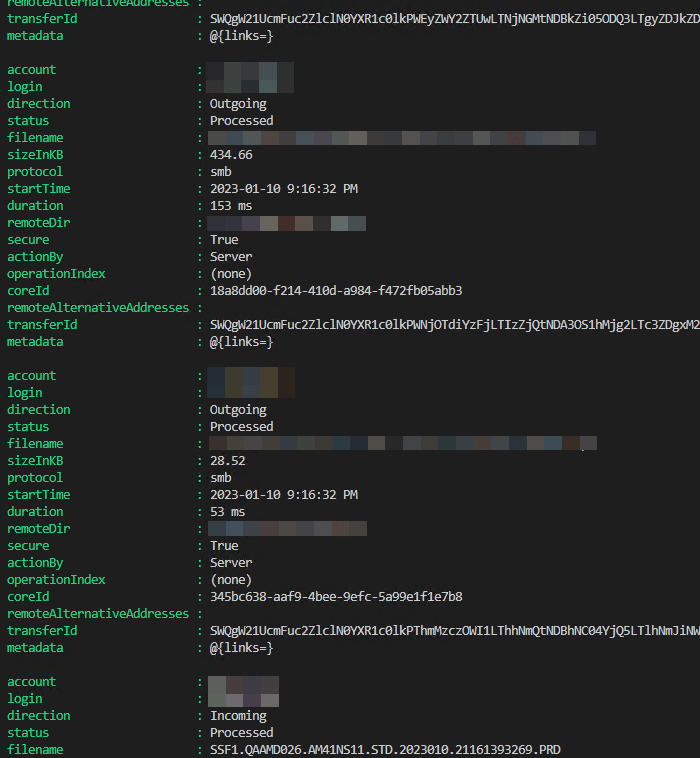
And turn it into this:
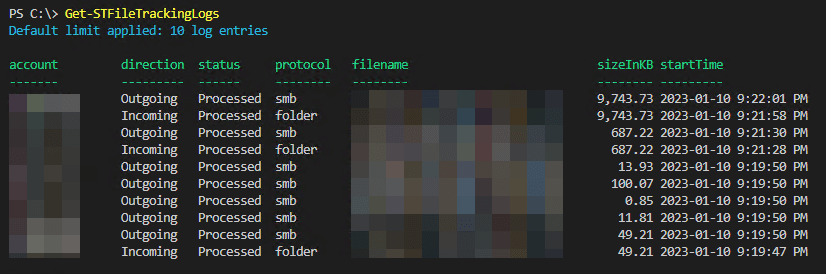
Far more useful for evaluating data at a glance than trying to scroll through a wall of text!
For PowerShell to automatically format the data, you need to add a custom PSTypeName when returning the object from the cmdlet. This is done by calling the Insert() method on psobject.Typenames of the object you return.
# Example how to add a custom Typename to a PSObject
$TransferInfo.psobject.Typenames.Insert(0, 'Axway.ST.TransferLog')
When the custom typename is added, PowerShell will recognize it and format the console output with the corresponding format data. What’s interesting is that you can actually create custom formatting for any PSObject TypeName, and even override default formats. Once you create a .ps1xml, it can be loaded into the console using the Update-FormatData cmdlet.
# Example how to import custom format data
Update-FormatData "CustomFormatData.ps1xml"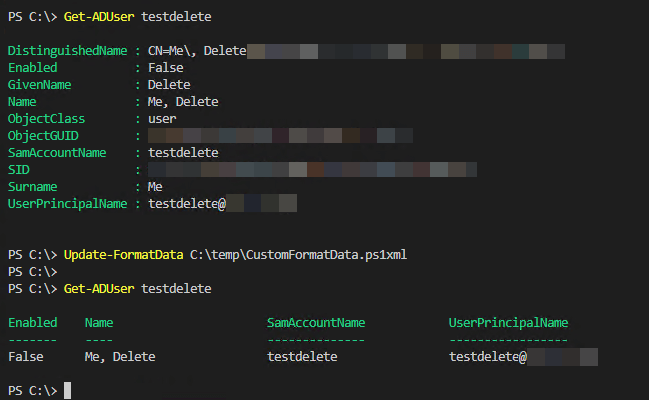
This is really useful if you find yourself often looking at properties that are not normally shown by a Get cmdlet. For a more detailed explanation and additional examples, please reference Jeff Hicks’ article. For more information about .ps1xml files in general, take a look at the about_Format.ps1xml Microsoft Learn page.
***
In part 1, I covered the initial idea for this module, the start of creating it, and formatting data returned by the module. In the next part, I’ll be exploring how to leverage PSTypeNames for input validation and how to store and retrieve module-specific configuration data.
See you next time. Happy scripting!
References
How to Create a PowerShell Module, Jeff Hicks
A PowerShell Script to Find System Uptime: Formatting Results, Jeff Hicks
 Pwsh+
Pwsh+ 
Greatness here! Very good article! I will be reading through them all!
LikeLiked by 1 person